




System requirements
- PC/laptop with Microsoft Windows 8 or higher OS and (preferably) 8GB ram and at least 1.5 GB disk space remaining.
- PC/Laptop should have an inbuilt webcam or a USB webcam.
- For Linux systems, general system requirements of docker will be applied.
- Mobile phone/tablet running Android 5.1 or later or iOS 13 or later.

Windows 8 or Higher

Linux (Docker)

Android 5.1 or Higher

iOS 13 or Higher
Installation
- Download from NCheck Bio Attendance On-Premises
- Install the application on your device.
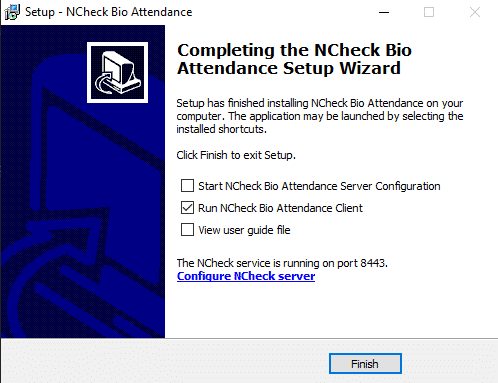
- In the last step of installation you can mark “Run NCheck Client” (optional) and click "Finish".
Server configuration
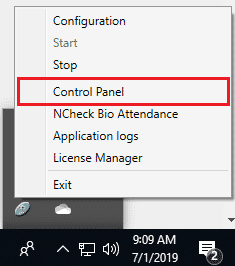
Log in to NCheck Bio Attendance On-Premises from NCheck System Tray icon Control Panel option,
https://localhost:8443
Enter the username and password. The default username and password are:
Password: admin
After successful login you will be directed to Control Panel.
To get started you have to create an employee/user profile in User Management section.
Create an employee/user profile
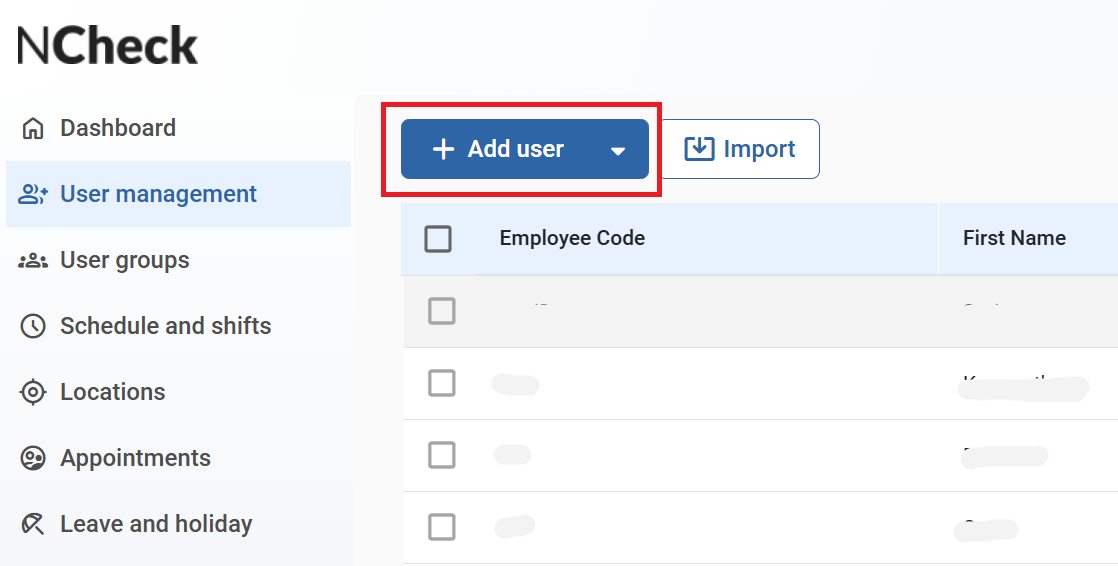
Enter first and last name, employee/user code. Additionally, you can fill up other info and set a profile picture. Click “Add” to save employee/user.
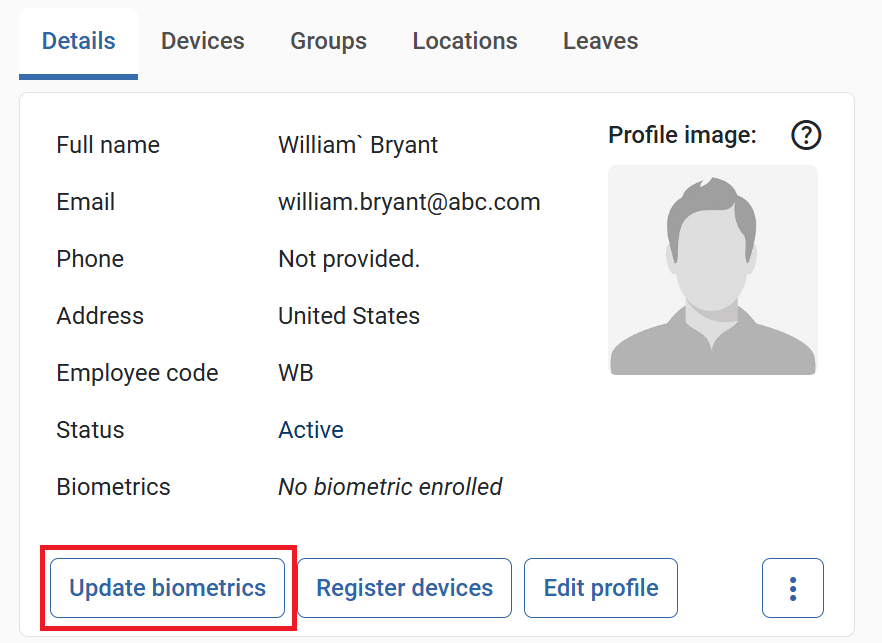
Once the user name is selected, basic user information will be avaiable on the right-side panel.
In order to recognize the user, you need to add a biometric data (face,fingerprint,iris - single modality or any combination of all available modalities) to the system. Click “Biometric” and on the next dialog upload/capture biometric data or enroll it from history.
Client app registration
To run the software on device, select “Standalone” option. In order to connect with your local NCheck Server installation, select “On-premises” option.
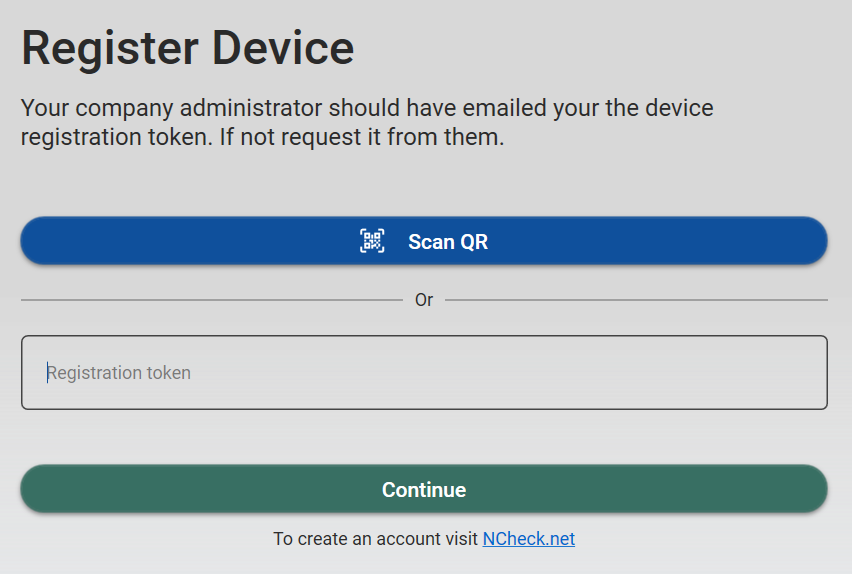
For registration token, you need to go back to Control Panel. Then go to User Details Panel and click “Register devices” to create a device registration token.
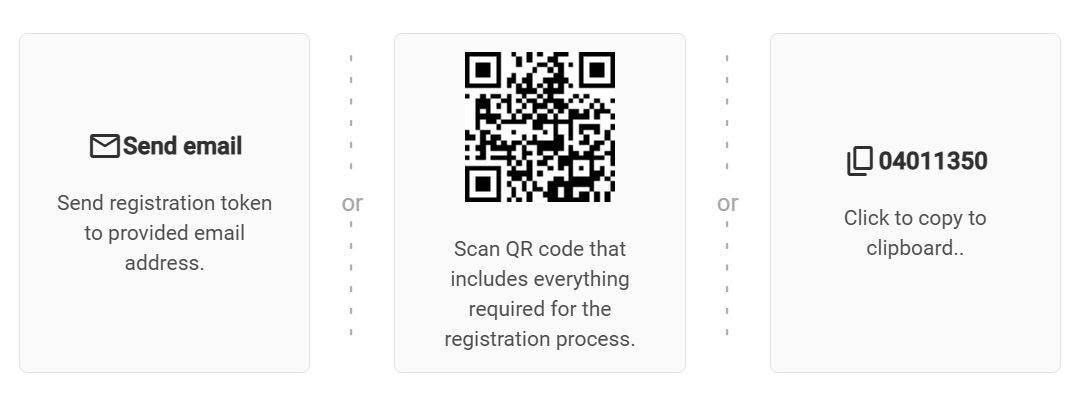
Enter the provided token and client app registration will be completed.
Marking attendance
Employees/users can mark attendance on the same device where NCheck Bio Attendance is installed or alternatively use client apps on any other device, including personal smartphone. A camera is needed to perform face identification. The system supports webcams and built-in cameras. For fingerprint or iris identification, the system requires an external fingerprint reader or iris scanner. Upon connection, supported scanners and camera devices are detected and configured automatically.
Attendance log can be viewed from Control panel Event Log
.